Starting a New Session
A session is the cashier's working condition for a specific period. Sessions store important initial information, especially the Opening Balance. Jova POS uses sessions to ensure transactions are recorded neatly and are easy to trace.
When you log in to Jova POS, the system checks if there is an active session. If not, the system will ask you to create a new session before transactions can proceed.
When you need to start a new session
You need to create a new session in the following situations:
- You just logged in and the system hasn't found an active session.
- You are starting your work shift today.
- You switched cashiers or changed Jova POS devices.
- You closed the previous session.
1. "Create new session" popup after login
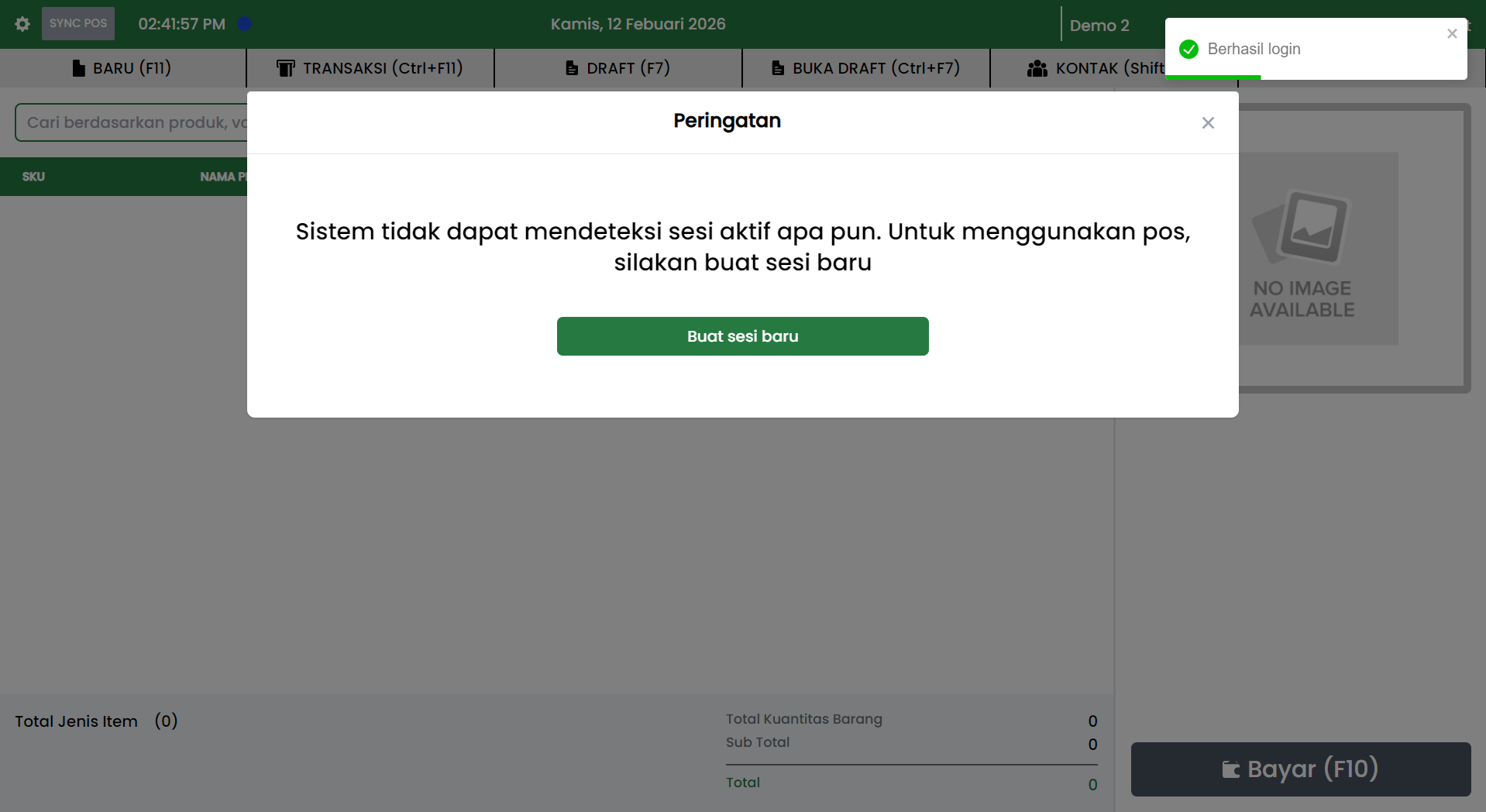
If there is no active session, Jova POS displays a Warning popup with the message:
The system cannot detect any active session. To use POS, please create a new session.
Click the Create new session button to continue.
2. New session form
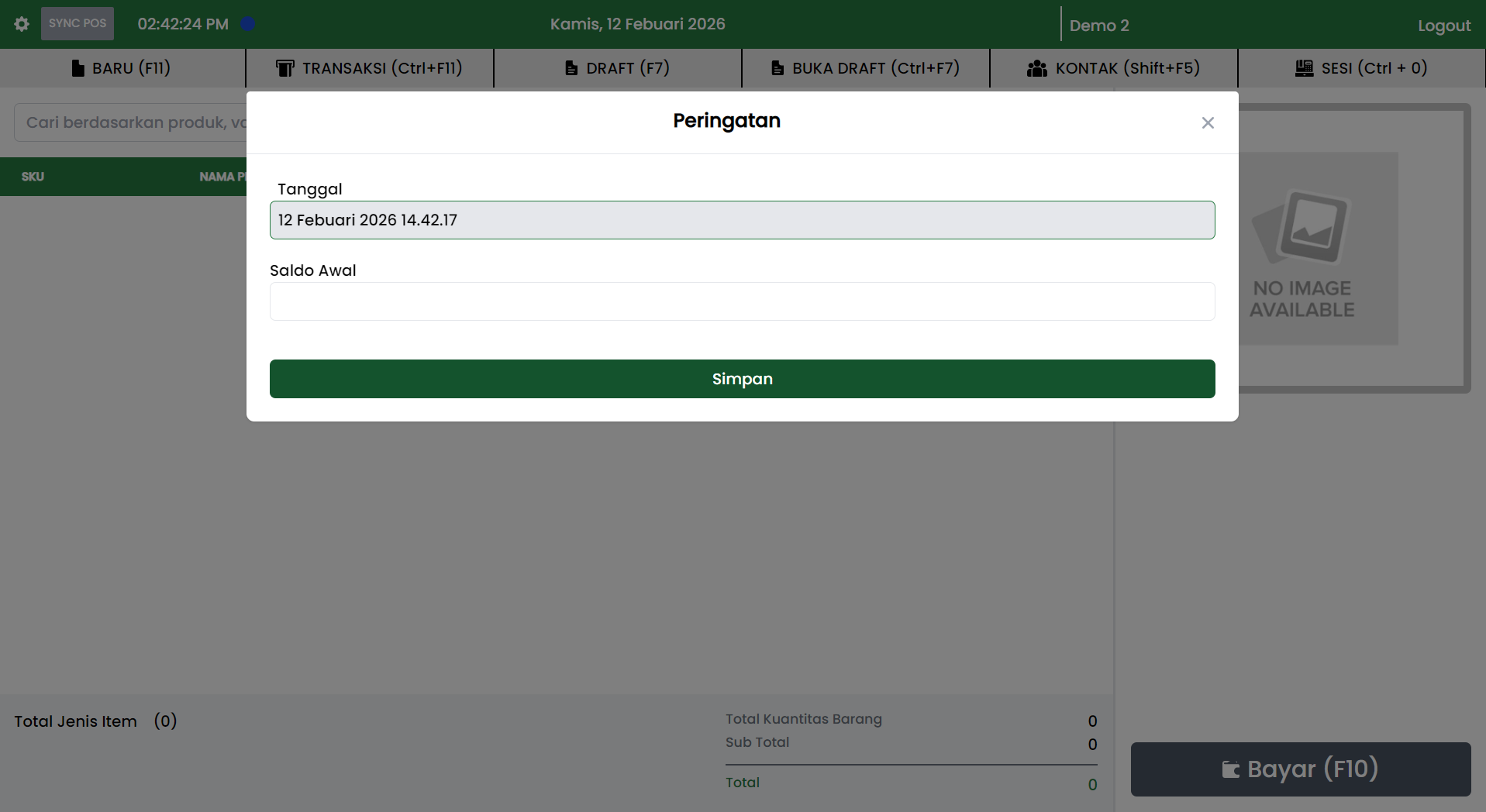
After you click Create new session, Jova POS displays the new session form.
2.1 Form field explanations
A. Date
- Jova POS auto-fills according to the device time.
- You usually don't need to change it.
- This field records the session start time for reporting and tracking.
B. Opening Balance
- Enter the amount of cash available in the drawer when the session starts.
- This value serves as a reference for cash reports and reconciliation.
- Enter the number according to the actual condition.
3. How to fill in the Opening Balance correctly
Follow these steps:
- Count the cash in the drawer before the first transaction.
- Enter the total in the Opening Balance field.
- Make sure the number you enter doesn't have digit errors.
Example of correct input:
- If the opening cash is Rp 235,000, enter
235000. - If the opening cash is Rp 0, enter
0.
Note:
- If the display adds automatic rupiah formatting, still enter the number without dots, commas, or symbols.
4. Save session
After the fields are filled, click the Save button.
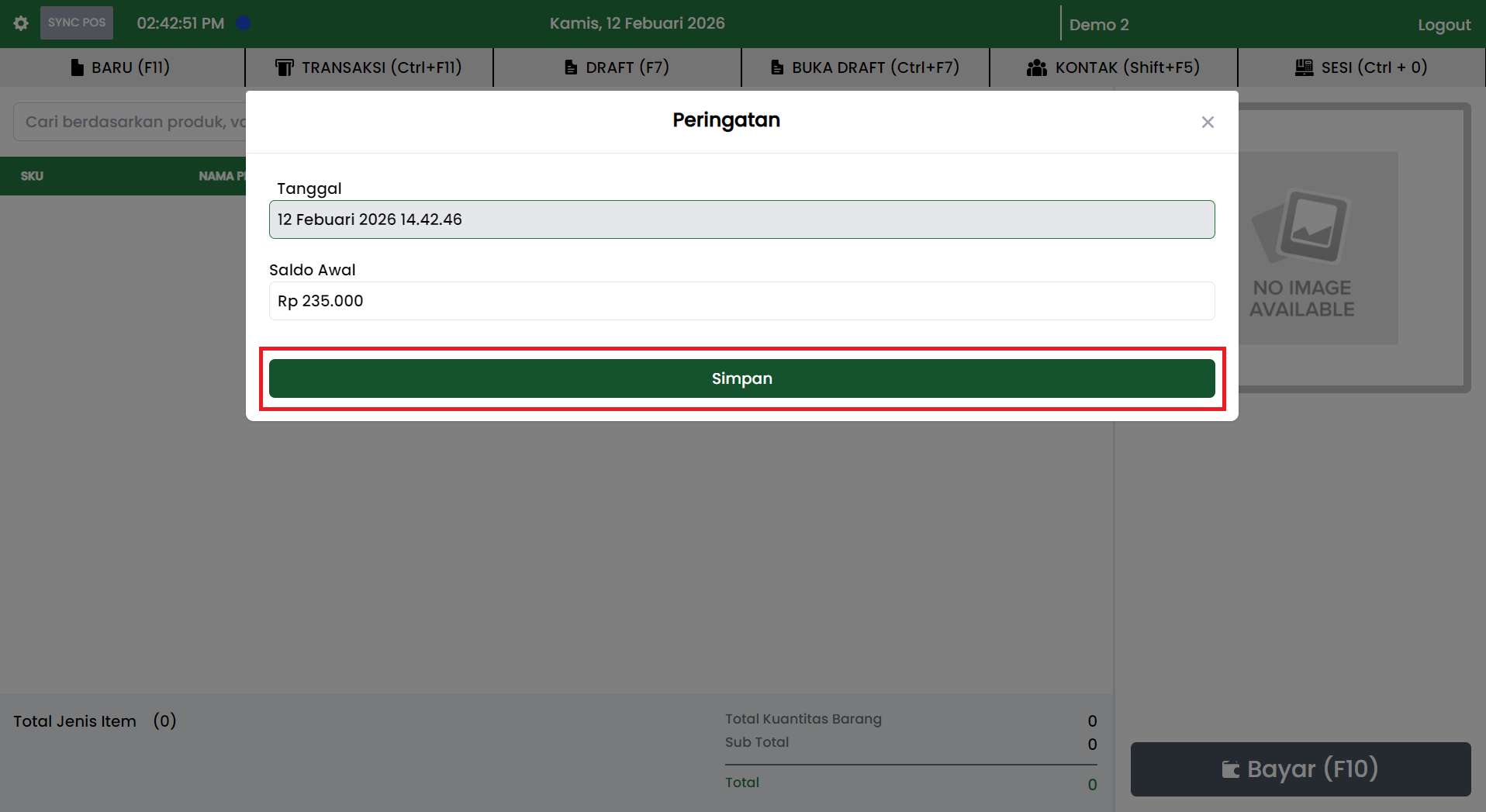
If successful, the popup will close and Jova POS will be ready for transactions.